
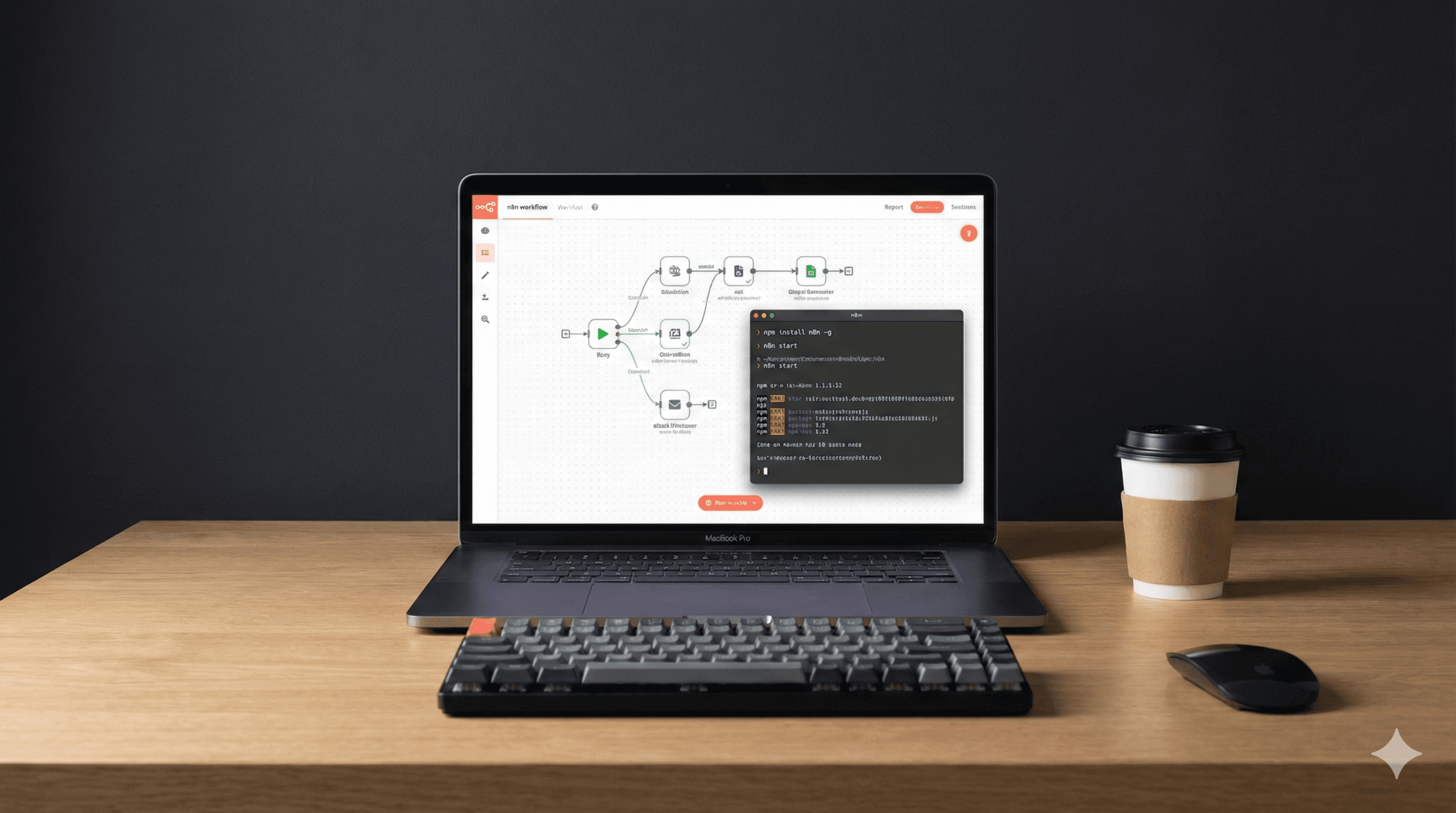
Most n8n guides tell you to install it globally on your computer. That works fine until you want to test different versions, manage multiple projects, or just keep things clean. Here’s how to install n8n locally in its own folder using npm.
Why Install n8n Locally Instead of Globally?
When you install n8n in a specific folder, you’re not cluttering your system. Each project gets its own copy. You can have different versions for different projects. And if something breaks, you just delete the folder. No system-wide mess to clean up.
What You Need Before Starting
You need Node.js installed on your computer. That’s it. n8n works with Node.js versions 20.19 through 24.x. If you don’t have Node.js yet, grab it from nodejs.org and install the LTS version.
To check if you have it, open your terminal (or Command Prompt on Windows) and type:
bash
node -v
npm -v
If you see version numbers, you’re good to go.
Step 1: Create a Folder for n8n
Open your terminal and make a new folder. You can name it whatever you want. I’ll call it “my-n8n-project”:
bash
mkdir my-n8n-project
cd my-n8n-project
This folder will hold everything n8n related. Your workflows, data, and settings all stay here.
Step 2: Set Up npm in Your Folder
Before installing n8n, you need to initialize npm in your folder:
bash
npm init -yThis creates a package.json file. Think of it as a settings file that tells npm what’s in your project.
Step 3: Install n8n Locally
Now install n8n, but only in this folder. No global installation:
bash
npm install n8nThis downloads n8n and puts it in a “node_modules” folder inside your project. It takes a minute or two. Grab some coffee.
Step 4: Make n8n Easy to Run
You need to tell npm how to run n8n. Open the package.json file (it’s in your project folder) with any text editor.
Find this part:
json
"scripts": {
  "test": "echo \"Error: no test specified\" && exit 1"
},
Replace it with:
json
"scripts": {
  "start": "n8n"
},
Save and close the file.
Step 5: Start n8n
Now you can start n8n with this simple command:
bash
npm run startYour terminal will show some startup messages. Wait until you see something like “n8n ready on 0.0.0.0, port 5678”.
Open your browser and go to: http://localhost:5678
First Time Setup
The first time you open n8n, it asks you to create an owner account. Fill in your email, name, and password. This is just for your local setup, no one else will see it.
After that, you’re in. The dashboard opens and you can start building workflows.
Stopping n8n
When you’re done, go back to your terminal and press Ctrl+C. That stops n8n. Your workflows and data are saved in the folder, so nothing gets lost.
Running n8n Again Later
Next time you want to use n8n, just navigate to your project folder and run:
bash
cd my-n8n-project
npm run start
Where Your Data Lives
All your n8n data goes into a hidden folder called .n8n in your home directory. On Windows, that’s C:\Users\YourName.n8n. On Mac and Linux, it’s ~/.n8n.
Your workflows, credentials, and settings are stored there. If you want to back up your work, copy that folder.
Quick Testing Without Installation
If you just want to test n8n without installing anything, use npx:
bash
npx n8nThis downloads n8n temporarily, runs it, and cleans up after. Perfect for a quick look. But if you close the terminal, everything’s gone.
Common Issues and Fixes
Can’t find n8n command: Make sure you’re running npm run start and not just n8n. The local install doesn’t add n8n to your system commands.
Port 5678 already in use: Something else is using that port. Either close the other program or tell n8n to use a different port by adding this before running:
bash
N8N_PORT=5679 npm run startPermission errors on Mac/Linux: If you see permission errors, you might need to use sudo for the npm install step. But generally, you shouldn’t need it for local installs.
Why This Method Matters
You’re not locked into one version. You can have different projects with different n8n versions. Want to try a beta feature? Make a new folder and install the beta version there. Your main setup stays untouched.
You also keep your system clean. No global packages cluttering things up. And if you mess something up, just delete the folder and start fresh.
What’s Next?
Now that n8n is running, you can start building workflows. Connect your apps, automate tasks, and save time. The interface is pretty straightforward. You drag nodes onto the canvas, connect them, and watch your automation run.
n8n has over 400 integrations built in. Google Sheets, Slack, email, databases, you name it. And if something’s missing, you can write custom code inside n8n.
The best way to learn is to just start building. Pick a simple task you do regularly and automate it. You’ll figure out the rest as you go.
